Thank you for renewing your membership to Odiham District u3a. You can renew in the following categories:
- Individual member : £20. Note : if you joined after 1st May 2026, your membership is valid until the end of August 2027
- Associate member : £16. Use this if your primary u3a (the first one you joined) is not Odiham. You'll be paying full price to your primary u3a but discounted Associate Membership to Odiham and any u3a you joined after that
- Joint members : £40. This allows you to claim two lots of Gift Aid per couple. If you are not already setup as joint members, but wish to do so, you must first contact the membership secretary to get this actioned for you. More information on joint membership can be found here.
If you feel confident to do the renewal without help, then press the button below. Otherwise, please read, and possibly print out, the instructions below before you start.
By clicking on the “Renew” button below you are signing up to our Terms and Conditions and to our Privacy Statement.
Note : when you click on the button at the bottom of this page, the Beacon Members Portal will open up in a new browser tab, allowing you to go back to this page.
If you're feeling lucky, and if fighting PayPal's cookies holds no fear for you, you can skip straight to the "let's do it" button and miss out the "How to.." guide below.
How to renew without a Beacon Members Portal login
You will be doing your renewal through a system called the Beacon Members Portal.
In the past, we signed into this Beacon Members Portal using our membership details. This is error-prone - it requires a lot of information, and all the information has to be exactly as held in the Beacon database.
Beacon is therefore moving to a sign-in that uses your email and a password that you will choose.
But, because you haven’t already set up your an email and password-based sign in to the Beacon Members Portal, you will need to do this before you are able to renew your u3a membership. In other words, you will first sign in to Beacon using your u3a membership details, and you will then create your email and password sign-in for use in subsequent years.
This is a summary of the steps you will go through:
- You will go into the Beacon Members Portal, enter your membership details and create an email and password-based login
- You will log into the Beacon Members Portal using your new email and password login
- You will pay your subscription using a credit card
Let's go through the steps in more detail.
Step 1 : Go to the Beacon Members Portal
When you hit the "renew membership without Beacon login" button above, you will be taken into the Beacon Members Portal.
Step 2 : Sign into Beacon Members Portal using your membership details
- Do not enter an email address or password because you haven’t set these up yet, and this way of signing in will therefore not work.
- Instead, click on “Sign In with membership details”, as shown by the red arrow in the screenshot below.

- Type in your Membership number, Forename, Surname, Post Code and email address, then press “Confirm Identity”.

If you can’t remember your Membership number, there are three places you can get it from:
- Your membership Card
- We sent you an email early in July with all your membership details in it
- Contact our membership secretary
The details you enter have to exactly match those held by the u3a - Beacon is very picky in this regard.
If you have previously supplied a familiar name (e.g. Ted, Liz), then this is what will need to be input as Forename.
Step 3 : Create your password for future Beacon Members Portal signing in
- After entering the required five pieces of data and pressing “Confirm Identify”, you will be asked to create a password (and thus, you will be creating your new email and password-based Beacon Members Portal sign-in credentials). The password must:
- Be between 10 and 72 characters
- Include at least one upper-case character
- Include at least one lower-case character
- Included at least one numeric character
- Not include any special characters like : or "&" or "%"
Hint : keep a record of the email address you used - many people have more than one email address. And, keep a record of the password you chose, because you will need it in 12 months time when you renew your u3a membership again.
- Enter and confirm your chosen password and then press “Update Account”.
Step 4 : Confirm that you own the email address you used in the Beacon Members Portal
Now that you have set up your email and password-based sign-in to Beacon, you need to confirm that you really own the email address you supplied. This will be done by the Beacon Members Portal sending you an email with a link that you must click on within the next hour.
- You will see the screen below, confirming that you have been sent an email with a link. You can now close this browser tab.
* If the email doesn't arrive within a few minutes, check the Spam folder in your email system.

The confirmation email will expire after 1 hour, although should this happen, Forgotten Password can be used to request a new confirmation email.
Clicking the link in the email will take you back to the Beacon Members Portal sign in screen, where there will be a message to say that your email address has been verified.
Enter your email address and password, press “Confirm Identity”.
If the email address or password that you entered do not match those held on the system, you will be prompted to use the Forgotten Password link or you can contact your membership secretary.
Step 5 : Log back into Beacon Members Portal to do your renewal with your new login
- Go back into the Beacon Members Portal by either hitting the button at the top of the page again or using this link.
- Log into the Beacon Members Portal using your email and the password you just generated
Step 6 : Make your payment
Now we have to make the payment “using PayPal”. At this point, many people say, “I don’t have a PayPal account, nor do I want to create one”. That’s ok - you don’t have to.
We all know of PayPal as a way of making payments on e-commerce sites like eBay. To do this, we need a PayPal account.
However, PayPal is also simply a means of taking credit card payments. It is this PayPal functionality that Beacon uses. Thus, you don’t need a PayPal account to renew your u3a membership.
Making the payment using PayPal
The first screen you will see from PayPal is shown below. Yes, it says it's a login screen, but we are going bypass the PayPal login process.
- Enter your email address
- If you don't have a PayPal account and don't want to create one, then select "Pay by Debit...", as shown by the red arrow below.
If you don't see the screen below, but instead only have the option to log into PayPal, it is probably because you did have a PayPal account at some point in the past and your browser is remembering this. This memory is provided by something called "cookies". In order to proceed you will have to delete these cookies from your browser.
Instructions on how to do this are given here (it will bring up a new tab in your web browser).
- Click on “Continue to Payment” (as shown by the upper red arrow)

- Enter your credit or debit card details.

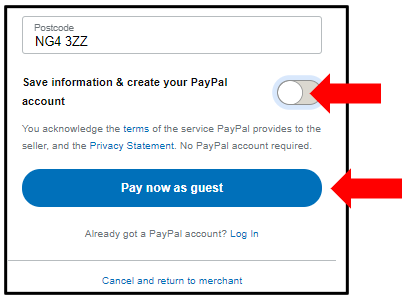
- If you still wish to pay by card, but don’t want to create a PayPal account, you must move the “Save information and create your PayPal account” slider to the left (as shown by the upper red arrow below).
- Now press “Pay now as guest” (You have now successfully avoided PayPal's repeated attempts to get you to create a PayPal account. Congrats.)